iptv no buffering is what almost every IPTV viewer wants, but the phrase can be misleading. No internet-based service can realistically promise that a stream will never pause under any possible condition. Your broadband, WiFi, streaming device, application and video source all influence what eventually appears on the television.
The useful goal is therefore not an impossible zero-buffering guarantee. It is to build a setup where interruptions are rare, short and easy to diagnose.
For UK viewers using Smart TVs, Fire TV devices, Android TV boxes or mobile devices, the biggest improvement often comes from identifying the real bottleneck instead of repeatedly changing IPTV apps or buying faster broadband.
This guide uses a practical troubleshooting approach: symptom first, fix second.
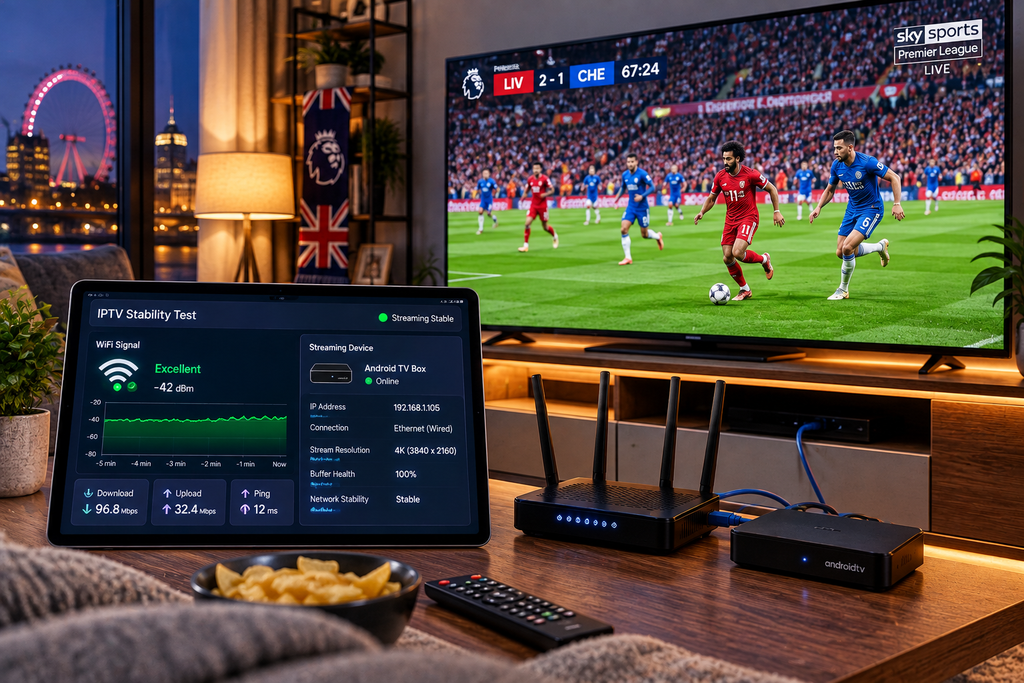
iptv no buffering starts by identifying the type of freeze
Not every frozen screen means the same thing.
Before touching the router, look at exactly what happened.
Did one channel stop while others continued normally?
Did every live channel begin buffering?
Did VOD work while live television failed?
Did Netflix or YouTube also become slow?
Did the application itself freeze, including its menus?
These details divide what looks like one problem into several very different problems.
| What you notice | First place to investigate |
|---|---|
| One channel buffers | Individual stream or source |
| All IPTV channels buffer | Connection, service or app |
| All streaming apps buffer | Internet or home network |
| WiFi buffers but Ethernet works | Wireless network |
| Menus lag before video starts | Device or app performance |
| Only 4K struggles | Bandwidth or hardware capability |
| Evening is worse than daytime | Network load or congestion |
This table is more useful than immediately restarting everything.
The one channel rule
Imagine you are watching a sports channel and it suddenly begins freezing.
Do not reboot the entire house.
Open another channel.
If that works normally, try a third.
When multiple alternatives remain stable, the original stream may be the problem.
Restarting the router repeatedly cannot repair an issue isolated to one content source.
This simple comparison should be one of the first tests you perform.

The YouTube comparison can save twenty minutes
Now imagine every IPTV channel is struggling.
Open a mainstream streaming service on the same device.
Play a high-quality video.
If that also buffers, the problem is less likely to be limited to your IPTV service.
Your internet connection, WiFi or device may need attention.
If other streaming services work perfectly while IPTV repeatedly fails, you have narrowed the investigation in another direction.
Troubleshooting is essentially elimination.
Every comparison removes possibilities.
Stop treating the broadband speed on your bill as the speed at your TV
Your broadband package might advertise hundreds of Mbps.
That number describes the connection delivered to your home under particular conditions.
It does not guarantee that your television receives the same performance through WiFi.
Picture a router downstairs near the entrance.
The television is upstairs, behind several walls.
Your phone beside the router may report fantastic performance while the streaming device beside the TV receives a much weaker signal.
Test from the viewing position
Run your connection test close to the actual television or streaming box.
Test several times rather than relying on one result.
Do it during the evening too.
You are interested in consistency, not the highest number you can capture.
UK viewers can also use Ofcom broadband information to understand broadband performance and consumer guidance.
Your 8pm internet is more important than your 10am internet
A speed test performed while the house is empty can create false confidence.
Consider what happens later.
One television is streaming.
Someone is gaming.
A laptop starts a large download.
Several phones are connected.
Cloud backups begin.
Another person opens a 4K video.
All of those activities share network resources.
If IPTV problems mainly occur during busy household periods, recreate those conditions while testing.
The network you use every evening matters more than an ideal benchmark when nobody else is home.
Try Ethernet before buying anything
This is one of the most useful diagnostic tests available.
If your streaming device supports Ethernet, temporarily connect it directly to the router when practical.
Now replay the type of content that was causing problems.
If the difference is dramatic, you have strong evidence that the wireless link was contributing to the issue.
You do not necessarily need to keep Ethernet permanently.
The test itself has already told you where to focus.
When Ethernet makes sense permanently
A main television rarely moves.
If it is reasonably close to your router or a network point, a wired connection can remove wireless interference and signal-strength fluctuations from the streaming path.
WiFi is still perfectly capable of excellent streaming.
Ethernet is simply useful when you want to eliminate one variable.
Move the router before upgrading your broadband package
This fix costs nothing and is often overlooked.
A router hidden behind furniture, placed inside a cabinet or positioned at one extreme of the property may provide poor coverage elsewhere.
If possible, give it a more open and central position.
Do not place networking equipment where thick obstacles unnecessarily block the signal.
For larger properties, suitable mesh WiFi or additional access points can improve coverage, but do not immediately buy more hardware.
First establish that coverage is actually the problem.
Your streaming device can be the bottleneck
Internet speed gets blamed for almost everything.
Sometimes the network is completely fine.
The television is simply struggling.
Older Smart TVs can have limited processors, memory and storage. Large playlists, detailed EPG data and modern applications can place additional demands on ageing hardware.
Look for clues.
Does the menu lag?
Does Search take a long time?
Does the remote feel delayed?
Does the app unexpectedly close?
Does another device on the same network perform significantly better?
Those symptoms can point towards the device rather than the connection.
Do not replace a good television because its software is old
A TV panel can remain excellent long after its Smart operating system begins to feel slow.
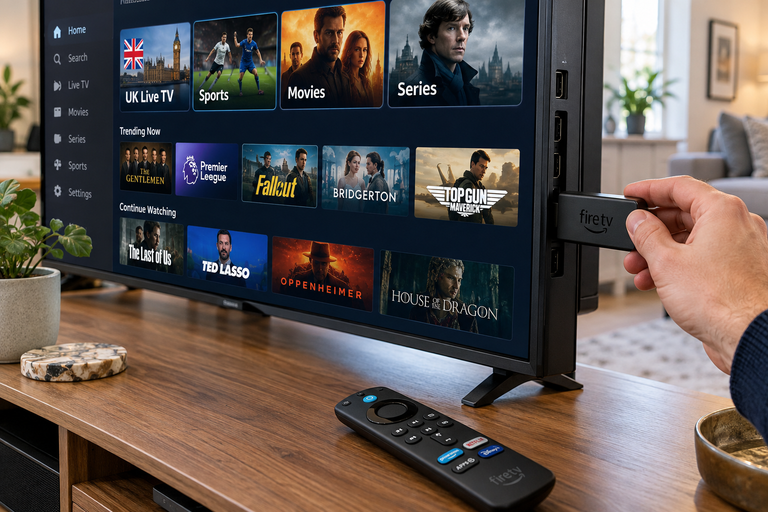
If that is your situation, an external streaming device can be a more practical upgrade than replacing the whole television.
A compatible Fire TV, Android TV or Google TV device can handle applications while the existing TV continues doing what it does well: displaying the picture.
The key is to solve the actual bottleneck.
New hardware is useful only when it fixes something.
4K can create buffering that Full HD avoids
Higher resolution usually requires more data and greater decoding performance.
If ordinary HD or Full HD streams are stable but 4K frequently buffers, that pattern tells you something.
Your setup may be operating near its limit.
Test the same type of content at a lower quality.
If stability immediately improves, investigate bandwidth, WiFi consistency and device capability before assuming the entire IPTV service is faulty.
Stable Full HD beats unstable 4K
For live television, reliability often matters more than the resolution label.
A crisp Full HD sports stream that remains smooth for two hours is more enjoyable than a nominal 4K stream that stops during important moments.
Use the highest quality your complete setup can sustain reliably.
Check whether your VPN is helping or hurting
Some users run a VPN continuously on their streaming device.
That adds another route between the device and the content.
A good VPN connection may work perfectly, but a distant or overloaded VPN server can reduce performance.
If you are using a VPN legally for privacy purposes and experience buffering, compare performance with and without it where appropriate.
Do not assume that enabling a VPN automatically improves IPTV performance.
Sometimes it changes nothing.
Sometimes it makes the route slower.
The comparison gives you the answer for your setup.
Restart strategically rather than ritualistically
“Restart everything” is common advice because it occasionally works.
A more useful approach is targeted.
If only the IPTV app behaves strangely, close and reopen the app first.
If the entire streaming device is sluggish, restart the device.
If every device in the house is experiencing connectivity problems, then investigate or restart the router.
Use the smallest intervention that matches the symptom.
This makes it easier to understand what solved the problem.
Clear unnecessary load from an ageing device
A streaming box filled with unused applications and very little free storage may behave poorly.
Remove applications you no longer use.
Install system and app updates from trusted sources.
Restart the device occasionally.
Avoid running unnecessary software in the background.
These actions will not repair a bad video source or weak broadband connection, but they can help a device that has gradually become sluggish.
STOP BUFFERING TODAY!
Enjoy ultra-fast, stable streaming with HD, Full HD, and 4K quality on all your favourite devices.
Buffer size is not a magic dial
Some IPTV players expose buffering or cache settings.
It is tempting to push these settings to the maximum.
More buffering can sometimes make playback more tolerant of short connection fluctuations, but it may also increase the delay before playback begins.
It cannot create missing bandwidth.
It cannot repair a consistently unreliable source.
Change such settings only when you understand what the option does, and test one adjustment at a time.
Live sport is the ultimate stress test
Sport is particularly demanding because the picture changes constantly and viewers notice interruptions immediately.
Use a long live sports broadcast as a practical stability test.
Do not simply check whether it opens.
Watch for a meaningful period.
Pay attention to:
- repeated micro-freezes
- quality suddenly dropping
- audio falling out of sync
- long buffering events
- problems appearing only after extended viewing
A service that works for thirty seconds has passed a startup test.
It has not passed a match.
Build a five minute buffering diagnosis
When the spinning circle appears, use the same sequence every time.
Step 1 Check another channel
If it works, the problem may be isolated.
Step 2 Check another streaming app
If everything buffers, look towards the network or device.
Step 3 Check another device
If your phone works on the same WiFi but the TV does not, investigate the TV or its wireless connection.
Step 4 Compare WiFi and Ethernet
A major improvement over cable points towards wireless conditions.
Step 5 Reduce stream quality temporarily
If Full HD works while 4K repeatedly fails, investigate the extra demands created by the higher-quality stream.
Step 6 Restart only the affected component
Start with the application, then the device, and only then broader network equipment when evidence points in that direction.
This order turns random troubleshooting into diagnosis.
Why DNS changes rarely deserve to be your first fix
Changing DNS appears in many online buffering guides.
DNS primarily helps translate domain names into network addresses.
Once a video connection has been established, DNS is usually not the thing continuously carrying the video data.
That means randomly changing DNS servers should not be the first reaction to every buffering problem.
Start with signal quality, network stability, device performance and the actual stream.
Fix the obvious bottlenecks before experimenting with secondary settings.
Do not believe absolute no buffering promises
This is important when choosing an IPTV provider.
No provider controls your entire internet path.
They do not control your home WiFi.
They do not control your television hardware.
They do not control every ISP route at every moment.
Therefore, “zero buffering forever” is not a realistic technical guarantee.
Look for something more useful: consistent performance, transparent information, device compatibility and responsive support.
A provider willing to help diagnose an occasional problem is more valuable than one making an impossible promise.
What to test before buying a longer IPTV plan
If a legitimate provider offers a trial, use it intelligently.
Do not spend the entire trial browsing the channel count.
Test your normal environment.
Watch during the evening.
Use your main television.
Try the content you genuinely care about.
Leave a live stream running.
Test HD and 4K where available.
Open the EPG.
Try VOD.
Check subtitles if they matter to you.
If you use several screens, understand the provider’s simultaneous connection rules.
You are testing whether the service fits your household, not whether its homepage contains a large number.
Choose support that asks useful questions
When buffering occurs, good technical support should want context.
Which device are you using?
Which application?
Is the problem happening on one channel or all channels?
Does VOD work?
Are you using WiFi or Ethernet?
When did the problem begin?
Those questions are useful because they isolate variables.
A support team that immediately blames your internet without gathering information is not diagnosing much.
Is IPTV legal in the UK
IPTV technology itself is legal. Many legitimate television and streaming platforms use internet-based delivery.
The relevant question is whether a service has permission to distribute the television, film or sports content it offers.
For a technical overview, see Internet Protocol television on Wikipedia.
UK users should choose legitimate services and authorised sources for copyrighted content. The fact that a stream technically works does not establish that the provider has distribution rights.
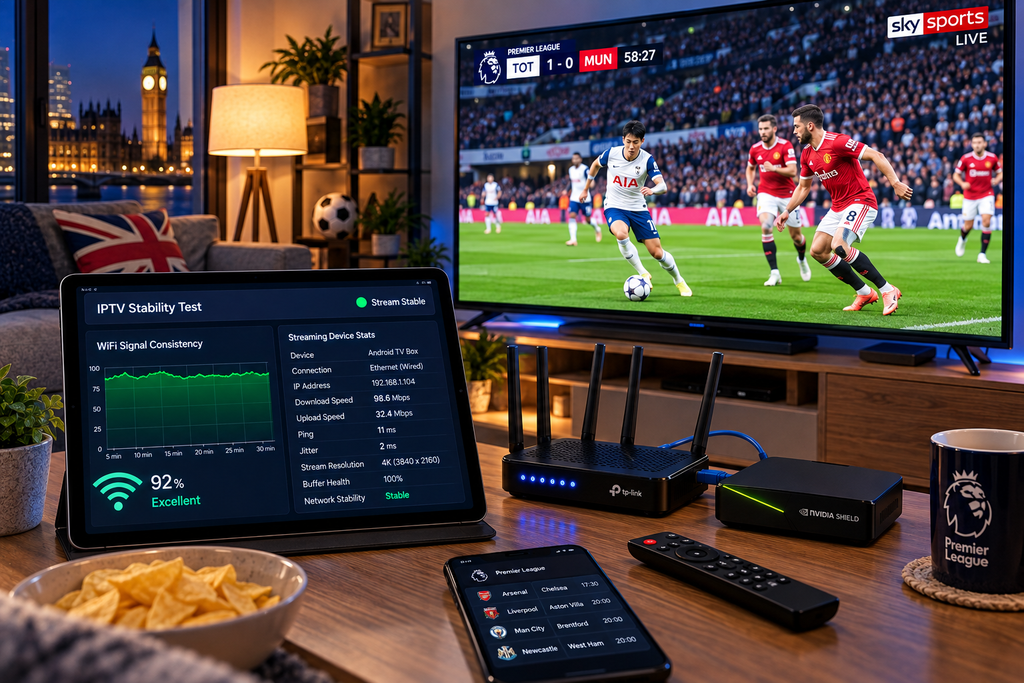
The realistic meaning of IPTV no buffering
The best streaming setup is not one that makes an impossible promise.
It is one where the network is strong around the television, the device has enough performance, the player is properly configured and the content source behaves consistently.
More importantly, when something does go wrong, you know where to look.
That is the useful meaning of iptv no buffering.
Not magic.
A well-built streaming chain with fewer weak points.
Get smoother streaming with IPTV British
A better IPTV experience starts with the right combination of service, device and network.
Before spending money on new hardware or faster broadband, identify where the problem actually occurs. Then choose an IPTV plan that matches your Smart TV, streaming device and household viewing habits.
Explore the available plans from IPTV British or compare the IPTV British subscription options to find the setup that suits your home.
Can IPTV really have no buffering
No internet-based streaming service can guarantee zero buffering under every possible condition. A strong provider and properly configured home setup can, however, make interruptions uncommon.
What internet speed is good for IPTV
The required speed depends on stream quality and the number of simultaneous users. Consistency and the quality of the connection reaching your streaming device are just as important as maximum broadband speed.
Why does IPTV buffer when Netflix works
The two services use different infrastructure, applications and delivery systems. If Netflix works while IPTV repeatedly buffers, test several IPTV channels and devices to determine whether the problem is isolated to the IPTV source or player.
Does Ethernet stop IPTV buffering
Ethernet can eliminate problems caused by weak or inconsistent WiFi, but it cannot repair every type of buffering. If the underlying stream or internet connection has a problem, Ethernet alone will not solve it.
Can an old Smart TV cause IPTV freezing
Yes. Older televisions may have limited processing power, memory or ageing software. If another device works smoothly on the same network, the television or its IPTV app may be contributing to the problem.
Should I use 4K if IPTV keeps buffering
Try Full HD temporarily. If it becomes consistently stable, your network or device may be struggling with the additional demands of the 4K stream.