IBO Player setup has become one of the most frequent tasks for UK streamers looking to enjoy high-definition television on modern Samsung Tizen and LG webOS Smart TVs. With televisions growing increasingly sophisticated, viewers across Britain are moving away from bulky external set-top boxes and choosing streamlined, native media player applications built directly into their TV’s operating system.
However, setting up an IPTV player on a Smart TV can occasionally feel daunting. Because major TV manufacturers employ proprietary operating systems—such as Samsung’s Tizen OS and LG’s webOS—the installation and playlist management process differs significantly from standard Android or Fire TV environments. Furthermore, understanding the technical boundary between an independent media player application and your streaming playlist credentials is vital to ensure a smooth, reliable viewing experience.
In this comprehensive UK guide, we walk you through the entire IBO Player setup procedure from start to finish. You will learn how to locate the application in the official UK app stores, identify your unique Device MAC and Device Key, upload your streaming playlist via the secure web management portal, and fine-tune your playback settings for flawless live sports and entertainment.
Understanding IBO Player: What You Need to Know First
Before beginning the installation, it is crucial to understand what IBO Player is—and what it is not. IBO Player is an independent third-party media player application designed exclusively for rendering user-supplied playlists and streaming feeds. It does not provide, host, or bundle any television channels, video-on-demand content, or streaming subscriptions.
Key aspects British viewers should note before starting:
- Independent Application Licensing: The developers of IBO Player offer a 7-day free trial upon initial installation on any compatible device. After the trial period concludes, maintaining access to the player software requires a one-time activation licence directly through the official IBO Player website. This software fee is entirely separate from any streaming service or playlist subscription you choose to connect.
- Playlist Requirements: To stream live television, you will require active playlist credentials—typically delivered either as an M3U Plus URL or an Xtream Codes API login (comprising a Server URL, Username, and Password). If you do not yet have an active playlist, you can explore our free trial options or review our flexible multi-device UK subscription plans.
- No Rooting or Sideloading Required: On supported Samsung and LG Smart TVs, IBO Player is installed directly from the manufacturer’s official app store, preserving your television’s warranty and security integrity.
Device Compatibility Across the UK Market
IBO Player boasts exceptional cross-platform architecture, making it one of the most versatile media solutions available in the UK. Supported platforms include:
| Television Platform | Supported Operating System | App Store Availability |
|---|---|---|
| Samsung Smart TV | Tizen OS (2017 models and newer) | Samsung Smart Hub / Apps |
| LG Smart TV | webOS (webOS 3.0 up to webOS 24) | LG Content Store / LG Apps |
| Android TV / Google TV | Android 7.0 (Nougat) and higher | Google Play Store |
| Amazon Fire TV | Fire OS 6, 7, and 8 | Amazon Appstore / Direct Download |
| Apple TV | tvOS 13.0 and newer | Apple tvOS App Store |
Step-by-Step IBO Player Setup Guide for Smart TVs
Follow these four straightforward steps to complete your IBO Player setup on any modern Samsung or LG Smart TV in the United Kingdom.
Step 1: Download IBO Player from Your TV App Store
- Power on your Smart TV and ensure it is connected to your home broadband network (preferably via a 5GHz Wi-Fi connection or direct Ethernet cable).
- Press the Home button on your TV remote control to bring up the main dashboard.
- Navigate to the official application marketplace:
- On Samsung TVs: Open Apps (Smart Hub).
- On LG TVs: Open LG Content Store or Apps.
- Click the search icon (magnifying glass) and type
IBO Playerusing the on-screen virtual keyboard. - Select the official application (look for the distinctive purple and blue IBO Player branding) and click Install or Download.
- Once the installation is complete, select Open to launch the application for the first time.
Step 2: Note Your Device MAC Address and Device Key
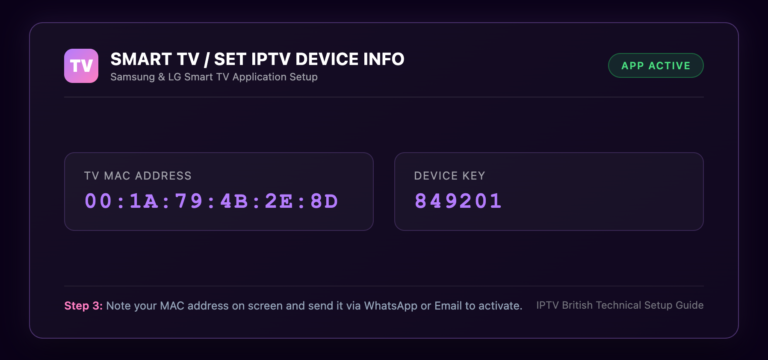
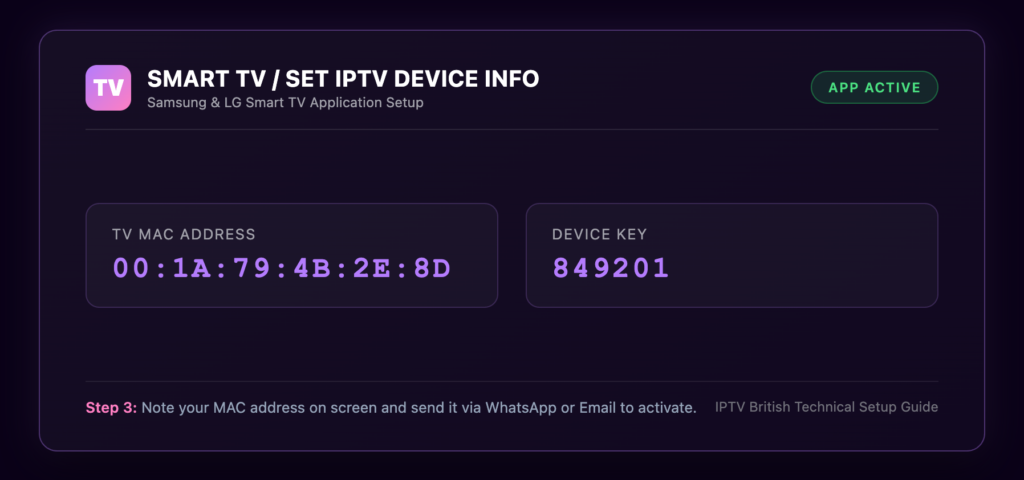
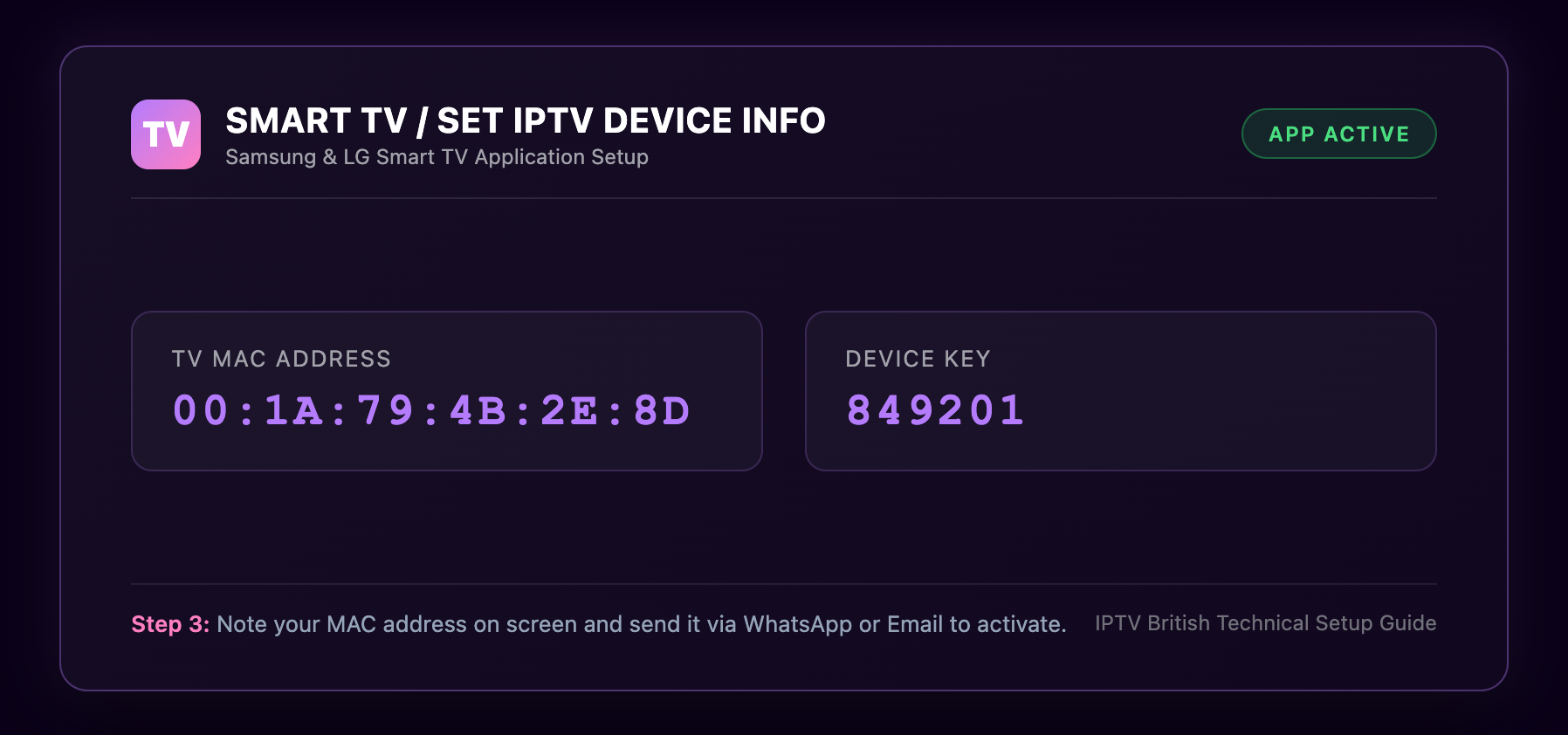
When IBO Player opens for the first time, it automatically generates a unique identifier for your television hardware. On the home screen, you will see two critical values displayed prominently:
- Device MAC: A 12-character hexadecimal code formatted as pairs separated by colons (e.g.,
a1:b2:c3:d4:e5:f6). - Device Key: A 6 to 8-digit security passcode generated dynamically to protect your configuration.
Keep this screen open on your television or make a careful note of both values. You will need them in the next step to pair your television with your playlist data. For additional reference and visual diagrams, you can also consult our dedicated IBO Player Setup Guide.
Step 3: Connect Your Playlist via the Web Portal
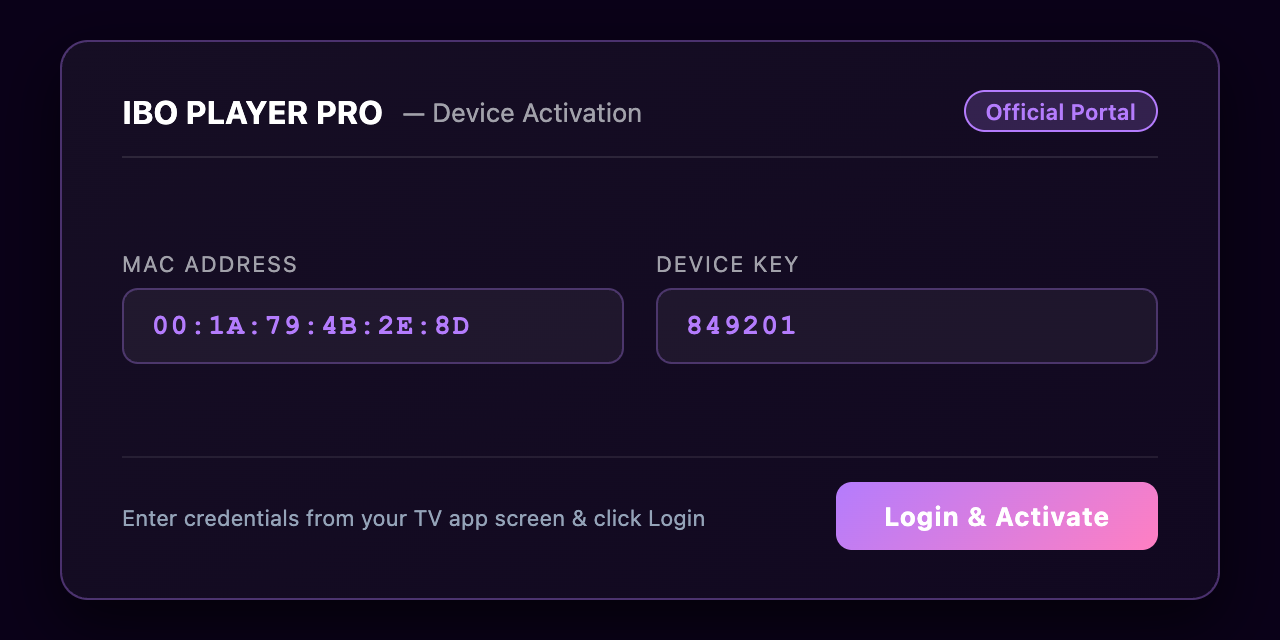
Because typing complex URLs and passwords using a television remote control is tedious and prone to typos, IBO Player utilises a cloud-based web management portal:
- On a separate computer, tablet, or smartphone, open your web browser and navigate to the official upload portal:
https://iboplayer.com/device/login. - Enter the Device MAC and Device Key recorded from your television screen in the login fields, then click Login.
- Once logged in, click the button labelled + Add Playlist (or + Add XC Playlist if using Xtream Codes).
- Enter a descriptive name for your playlist in the Playlist Name field (e.g.,
IPTV British UK). - Enter your subscription credentials:
- If using Xtream Codes API (Recommended): Enter the Server URL, Username, and Password provided in your subscription activation email.
- If using an M3U Link: Paste your complete M3U Plus URL into the Playlist URL field.
- Click Save to confirm. The portal will securely associate your playlist with your television’s hardware identifier.
Step 4: Reload and Configure Playback on Your TV
- Return to your Smart TV screen.
- On the IBO Player home screen, select Reload (or press the red button on your remote control, or exit and relaunch the app).
- The application will connect to the server, synchronise your playlist channels, download the Electronic Programme Guide (EPG), and populate your categories (Live TV, Movies, Series).
- You can now browse your British entertainment channels, 4K sports feeds, and on-demand catalogues using your TV remote.
Optimising IBO Player Settings for UK Broadband
To guarantee seamless streaming—particularly during bandwidth-intensive Premier League matches or prime-time 50fps British sports broadcasts—we strongly recommend making the following adjustments inside IBO Player settings:
- Decoder Selection: Navigate to Settings > Stream Format / Player. Ensure your video player is set to Hardware Decoder (ExoPlayer) on Android TVs or Default Native Decoder on Samsung/LG. Hardware decoding relies directly on your television’s graphics processor, eliminating video stuttering and audio desynchronisation.
- Buffer Time: If you experience intermittent pauses on slower broadband connections, navigate to Settings > Buffer Time and increase the buffer setting from Zero to 3 Seconds or 5 Seconds. This provides a safety cushion for minor packet delays.
- EPG Update Frequency: Set the Electronic Programme Guide update interval to Daily to keep TV schedules accurate without consuming excessive background memory on your television.
- Aspect Ratio: Set your default aspect ratio to Auto / 16:9 to prevent distorted channel scaling when switching between legacy broadcast formats and modern widescreen feeds.
Troubleshooting Common IBO Player Issues in the UK
Even with a correct IBO Player setup, occasional configuration hurdles may arise. Below are proven solutions to the most frequent customer scenarios:
Problem 1: “Playlist Load Failed” or Blank Channel List
If the application loads with an empty screen or displays a connection error, verify the following:
- Check URL Accuracy: Log back into
iboplayer.com/device/loginand double-check your playlist URL or Xtream Codes credentials. An extra space or mistyped character in the username or password is the root cause of 90% of loading failures. - Check TV Date and Time: Ensure your Smart TV’s date, time, and timezone are set correctly in your television system settings. If your TV clock is desynchronised, SSL certificate handshakes will fail, blocking secure server connections.
- Inspect ISP Content Shields: Leading UK Internet Service Providers—including BT Web Protect, Sky Broadband Shield, and Virgin Media Web Safe—can occasionally block international media streaming protocols. Temporarily accessing your ISP account settings to disable aggressive parental or security filters often resolves instant connection failures.
Problem 2: “Device Not Activated” After 7 Days
As noted earlier, IBO Player provides a 7-day trial. Once expired, you must visit the official IBO Player licensing website to purchase a lifetime software activation licence. Be cautious of unofficial third-party websites claiming to offer free activation codes; always use the official developer channel.
Problem 3: Video Freezing or Frequent Buffering
If high-definition streams buffer intermittently, the issue is almost always local network congestion rather than the IBO Player software itself. Connect your television via an Ethernet cable or switch to a dedicated 5GHz Wi-Fi band. For an in-depth diagnosis of broadband bottlenecks, review our comprehensive guide on how to fix IPTV buffering on Smart TVs and Firestick.
Frequently Asked Questions
Is IBO Player free to use on Smart TVs?
IBO Player provides a complimentary 7-day trial period upon your first installation. After 7 days, a one-off software licence fee (typically around €8 to €10) is required directly by the independent application developer to continue using the interface. This fee goes strictly to the player software developers and is independent of your television subscription.
Does IBO Player include British TV channels?
No. IBO Player is strictly a media playback engine and contains no pre-installed channels or media content. To watch British and international television, you must supply your own valid streaming playlist credentials, such as an M3U URL or Xtream Codes API login from a verified provider.
Can I use the same IBO Player licence on multiple TVs?
No. IBO Player licences are tied directly to the unique physical MAC address of a single television. If you have multiple Smart TVs across your home, each device requires its own individual application activation. However, you can manage all devices under our flexible multi-device family subscription plans, which allow up to 5 concurrent streams on a single account.
Why does my Smart TV not show IBO Player in the App Store?
If IBO Player does not appear in your TV’s app search results, your television may be running an older operating system (Samsung TVs manufactured prior to 2017 or LG TVs running webOS versions older than 3.0). In such cases, connecting an affordable Amazon Fire TV Stick or Android TV streaming box is the recommended alternative.
How do I refresh my channel list when new channels are added?
To refresh your channel lineup and catch newly updated sports feeds or entertainment categories, simply navigate to the IBO Player home screen and select the Reload button. The app will immediately pull the latest playlist structure from the server.
Next Steps: Elevate Your UK Streaming Experience
Now that your IBO Player setup is complete and your Smart TV is primed for high-performance viewing, you are ready to enjoy crystal-clear British entertainment, ultra-smooth 50fps sports broadcasts, and extensive on-demand libraries without cumbersome satellite equipment.
If you are setting up additional devices across your household, explore our complete collection of device setup guides, test your connection with a no-obligation free trial, or select from our full range of 1 to 5 device UK subscription plans backed by our standard 7-day money-back guarantee.