Configuring IPTV on Firestick is widely recognised as the most cost-effective and flexible way to experience modern television streaming in the United Kingdom. From the entry-level Fire TV Stick Lite to the flagship Fire TV Stick 4K Max and Fire TV Cube, Amazon’s streaming hardware has become a fixture in British living rooms, delivering high-performance video processing, responsive remote controls, and broad application support.
However, because Amazon operates a curated app store, several top-rated media player applications—such as TiviMate, IPTV Smarters Pro, and XCIPTV—are not directly hosted within the standard marketplace. As a result, new users often struggle with enabling the necessary system permissions, configuring the Downloader sideloading utility, and entering their streaming credentials accurately.
In this step-by-step 2026 UK tutorial, we demystify the entire procedure. You will learn how to unlock Developer Options across the newest Fire OS versions, install verified player software safely, connect your playlist via Xtream Codes API, and optimise your Firestick settings for buffer-free 50fps UK sports and entertainment streaming.
Why Amazon Firestick is the UK’s Leading Streaming Device
Before diving into the setup steps, it helps to understand why the Fire TV family remains the premier choice for British viewers looking to configure IPTV on Firestick:
- Powerful Hardware Decoding: Modern Fire TV devices feature dedicated hardware decoders capable of rendering H.264, HEVC (H.265), and AV1 video codecs at smooth 60fps and 50fps broadcast standards. This ensures high-motion football, rugby, and Formula 1 broadcasts play without motion blur or dropped frames.
- Full Application Freedom: Fire OS is built upon an Android foundation. While Amazon maintains its own Appstore, users retain the freedom to install verified third-party Android applications via official developer channels.
- Portable and Compact: Firesticks plug directly into any standard HDMI port, allowing you to take your entire entertainment setup with you when travelling within the UK or staying in hotels.
- Affordable Multi-Room Deployment: Costing between £30 and £65 depending on sales events, households can easily equip bedrooms, living rooms, and garden studios with identical interfaces under our multi-device subscription packages.
Prerequisites Before You Begin
To complete the setup smoothly, make sure you have the following items ready:
- An Amazon Fire TV Stick plugged into your TV and connected to your home Wi-Fi or Ethernet.
- An active Amazon account registered to the device.
- At least 500 MB of free storage space on your Firestick (check via Settings > My Fire TV > About > Storage).
- Your IPTV account credentials (Server URL, Username, and Password). If you need an active line, explore our free trial or select an appropriate subscription plan.
Step-by-Step Guide: How to Install IPTV on Firestick
Step 1: Enable Developer Options on Fire OS
On modern Fire TV devices running Fire OS 7 or Fire OS 8, Amazon hides the “Developer Options” menu by default for consumer safety. Unlocking it takes less than 30 seconds:
- From the Firestick home screen, navigate to the Settings gear icon on the far right.
- Scroll down and select My Fire TV (or Device & Software).
- Click on About.
- Highlight your device name (e.g., Fire TV Stick 4K Max) and press the Select / Centre button on your remote control exactly 7 times.
- A small notification will appear at the bottom of the screen stating: “No need, you are already a developer.”
- Press the Back button on your remote control once. You will now see the Developer Options menu unlocked directly below “About”.
Step 2: Install the Downloader App
Downloader by AFTVnews is the industry-standard utility for downloading application APK files directly to Fire TV devices:
- Return to the Firestick home screen and click on Find, then select Search.
- Type
Downloaderusing the keyboard or hold down the Alexa voice button and say “Downloader”. - Select the official orange Downloader application from the search results.
- Click Download or Get. The app will install automatically within moments.
Step 3: Allow Unknown Apps in Firestick Settings
To permit Downloader to install your chosen IPTV player software, grant the appropriate installation permission:
- Navigate back to Settings > My Fire TV > Developer Options.
- Select Install Unknown Apps (on older Fire OS versions, this is labelled Apps from Unknown Sources).
- Locate Downloader in the list and toggle the setting to ON.
Step 4: Download and Install Your Preferred IPTV Player
Launch the Downloader application from your home screen. When prompted, click Allow to grant file storage permissions so the app can save installer files.
Depending on your preference, you can install any of the leading player applications. Two of the most popular and reliable solutions in the UK are:
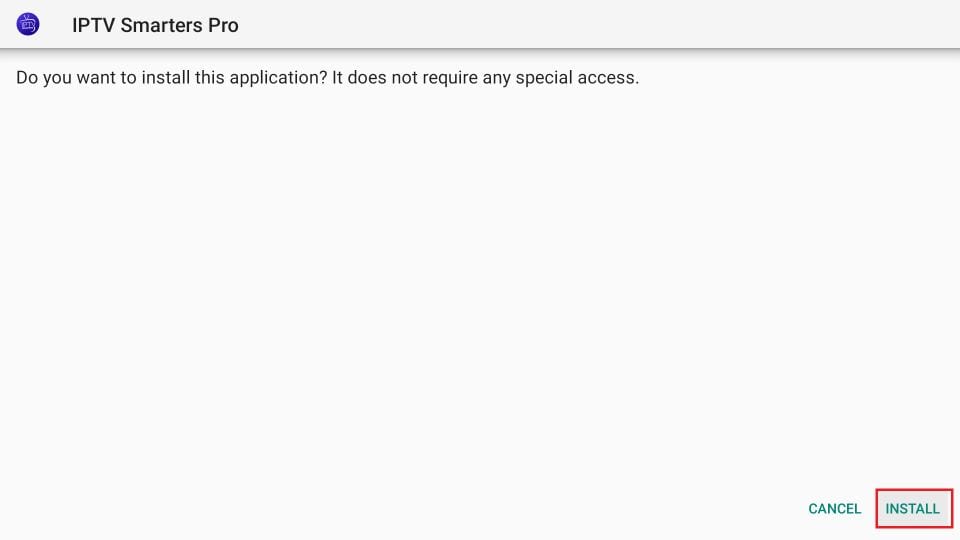
- IPTV Smarters Pro: Enter the direct shortcode or official download URL in the Downloader URL field. For a comprehensive walkthrough of this application, consult our detailed IPTV Smarters Pro UK Guide.
- TiviMate IPTV Player: Widely regarded as the most polished television interface for Firestick, featuring an authentic Sky-style Electronic Programme Guide, multi-view capabilities, and fast channel navigation. Enter TiviMate’s official Downloader code to begin the download.
- IBO Player: If you prefer IBO Player, enter the official IBO Player download link into Downloader. For full setup on this player, see our IBO Player Setup Guide.
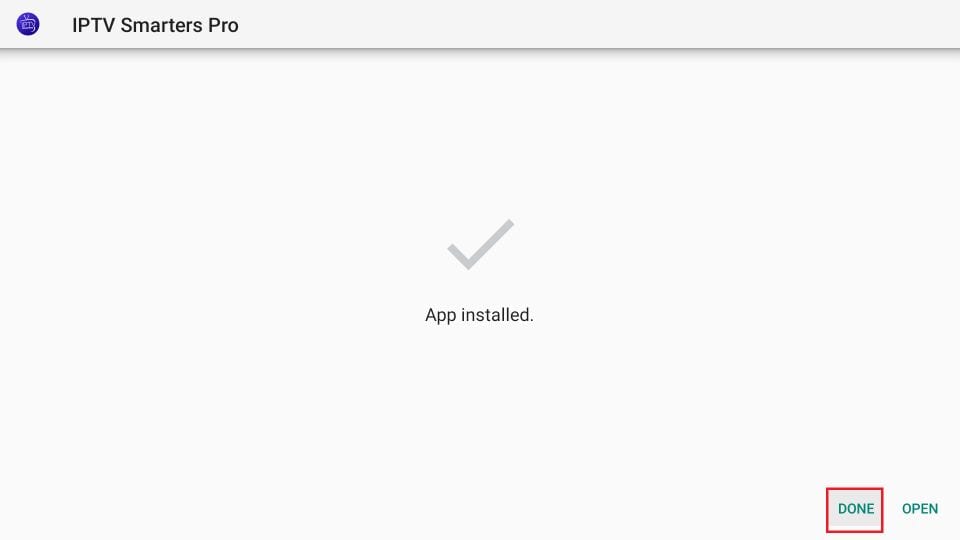
Once the APK finishes downloading, a prompt will appear automatically. Click Install. When finished, click Delete twice to remove the temporary installation file and conserve valuable Firestick internal storage.
Step 5: Configure Your Streaming Credentials
Launch your installed player from the Your Apps & Channels grid:
- Select Add User / Add Playlist.
- Choose the Login with Xtream Codes API option (this is significantly faster and more reliable than typing long M3U URLs).
- Fill in the four required fields:
- Any Name / Profile Name:
IPTV British - Username: Your personal account username.
- Password: Your personal account password.
- Server URL: The exact portal address provided in your subscription details (including
http://and port number).
- Any Name / Profile Name:
- Click Add User or Login. The player will download your channel categories, VOD movies, television series, and live EPG data.
Optimising Firestick for Smooth 50fps UK Streaming
Amazon Firesticks run numerous background diagnostic and advertising processes that can steal CPU cycles and memory from your streaming player. To ensure flawless IPTV on Firestick streaming, apply these essential performance tweaks:
- Turn Off Data Monitoring: Go to Settings > Preferences > Data Monitoring and switch it to OFF. This prevents Amazon from logging network data packets while you watch live streams.
- Disable Background Autoplay: Go to Settings > Preferences > Featured Content and turn off both Allow Video Autoplay and Allow Audio Autoplay. This stops home-screen trailers from consuming RAM.
- Disable App Usage Data: Go to Settings > Preferences > Privacy Settings and turn off Device Usage Data and Collect App Usage Data.
- Select the Correct Audio Output: If you experience audio-video sync lag on live football feeds, navigate to Settings > Display & Sounds > Audio > Surround Sound and select PCM or Stereo instead of Best Available. Many IPTV feeds broadcast in stereo, and forced Dolby Digital up-mixing can create minor processing latency.
- Clear Cache Periodically: Once a month, navigate to Settings > Applications > Manage Installed Applications, select your IPTV player, and click Clear Cache. This removes temporary EPG data and keeps navigation lightning-fast.
Frequently Asked Questions
Is setting up IPTV on Firestick legal in the UK?
Installing media player applications (such as IPTV Smarters, TiviMate, or IBO Player) on your Amazon Firestick is completely legal. These applications are independent playback software tools. Users are responsible for ensuring that any content, playlists, or streams they access comply with relevant copyright regulations.
Do I need a VPN for IPTV on Firestick in the UK?
While an IPTV service does not strictly mandate a VPN, many British viewers choose to use a reputable VPN service on their Firestick to prevent UK Internet Service Providers (such as BT, Virgin, and Sky) from throttling bandwidth during high-profile live sporting events.
Why is my Firestick freezing during live football matches?
Freezing during live matches is typically caused by Wi-Fi interference on crowded 2.4GHz bands, ISP traffic shaping, or insufficient player buffer settings. Switching your Firestick to a 5GHz Wi-Fi band or using an official Amazon Ethernet adapter usually resolves the issue. For a complete troubleshooting checklist, see our guide on how to fix IPTV buffering in the UK.
Can I use one subscription on two Firesticks in different rooms?
Yes, provided your subscription tier supports multiple simultaneous connections. Our UK subscription packages cater for 1, 2, 3, 4, or up to 5 simultaneous devices, allowing the whole family to stream on separate Firesticks simultaneously with zero conflicts.
How much internet speed do I need for 4K streaming on Firestick?
For standard high-definition (HD) streams at 50fps, a reliable broadband download speed of at least 15 Mbps is recommended. For full 4K Ultra HD sports broadcasts, we recommend an active connection of 30 Mbps or higher.
Next Steps: Start Watching on Your Firestick
Now that you have configured IPTV on Firestick, your television is transformed into a high-powered entertainment hub with instant access to British television, overseas channels, comprehensive sports coverage, and box sets.
For additional tips, explore our library of setup guides and technical tutorials. If you want to sample our streaming quality before committing, request a free trial or choose your preferred tier from our subscription plans.